BROWSER-LOCAL IMAGE WORKFLOWS
Batch resize images without uploading them
Prepare a consistent set of product photos, portfolio images or website assets. Choose a maximum size, preview the result and download the resized images together. Image processing happens on your device.
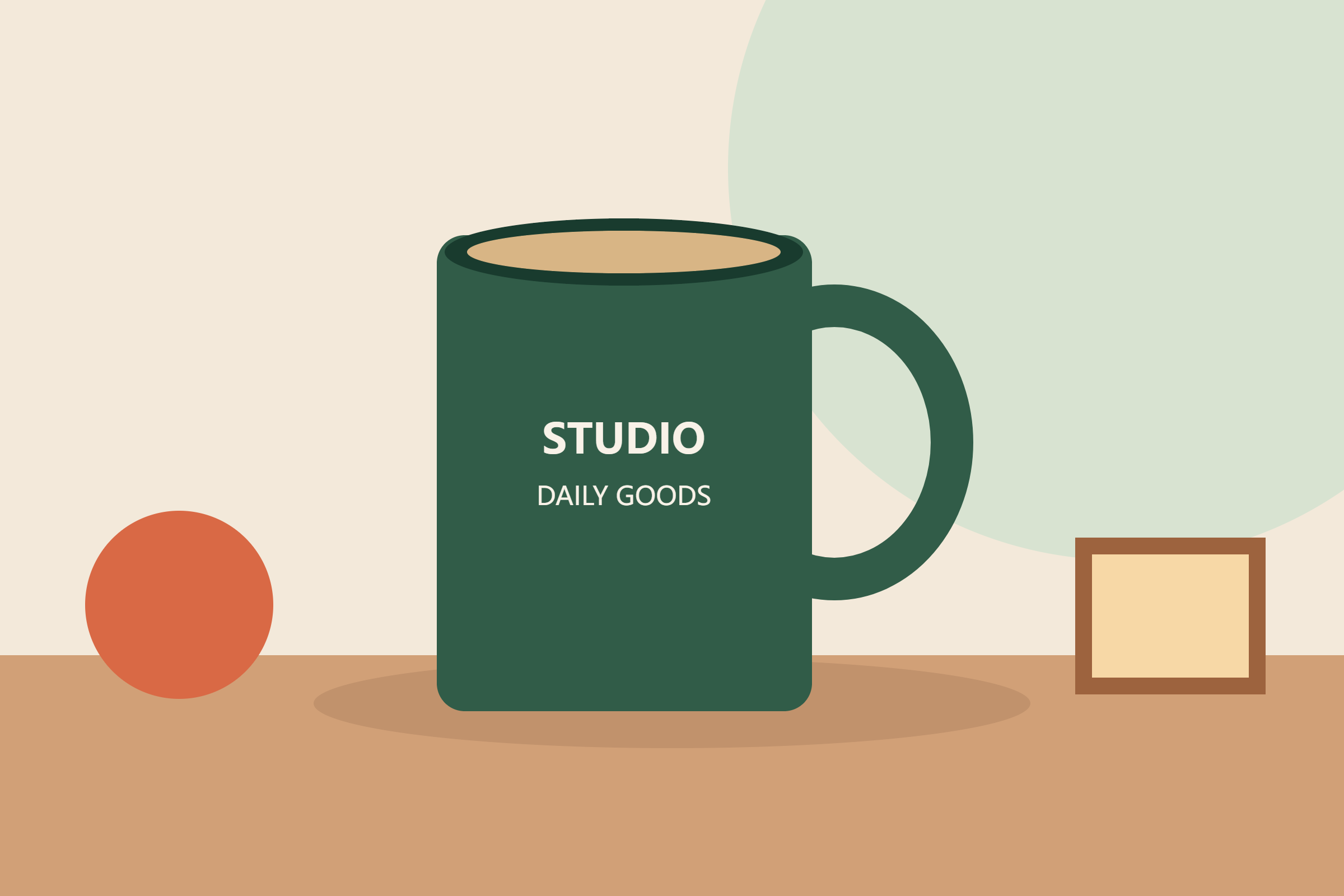
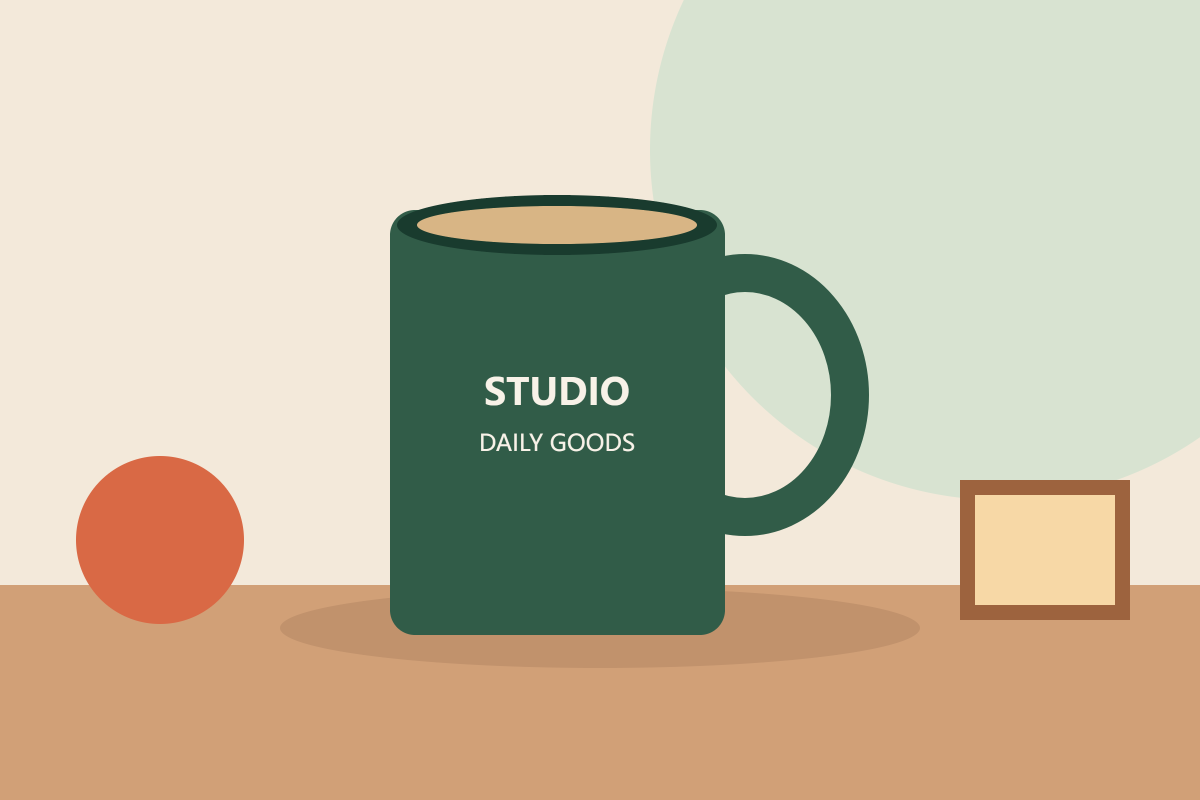
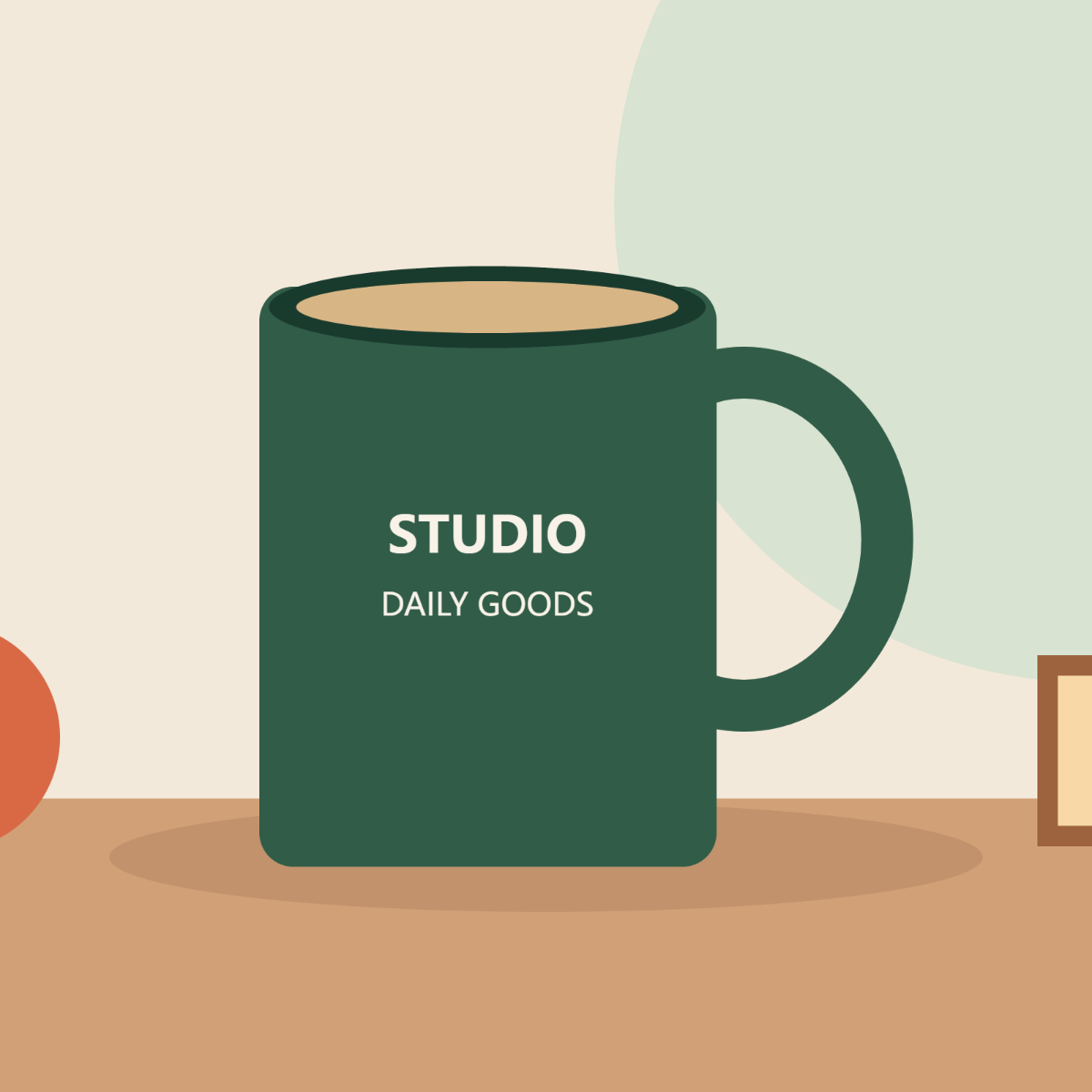
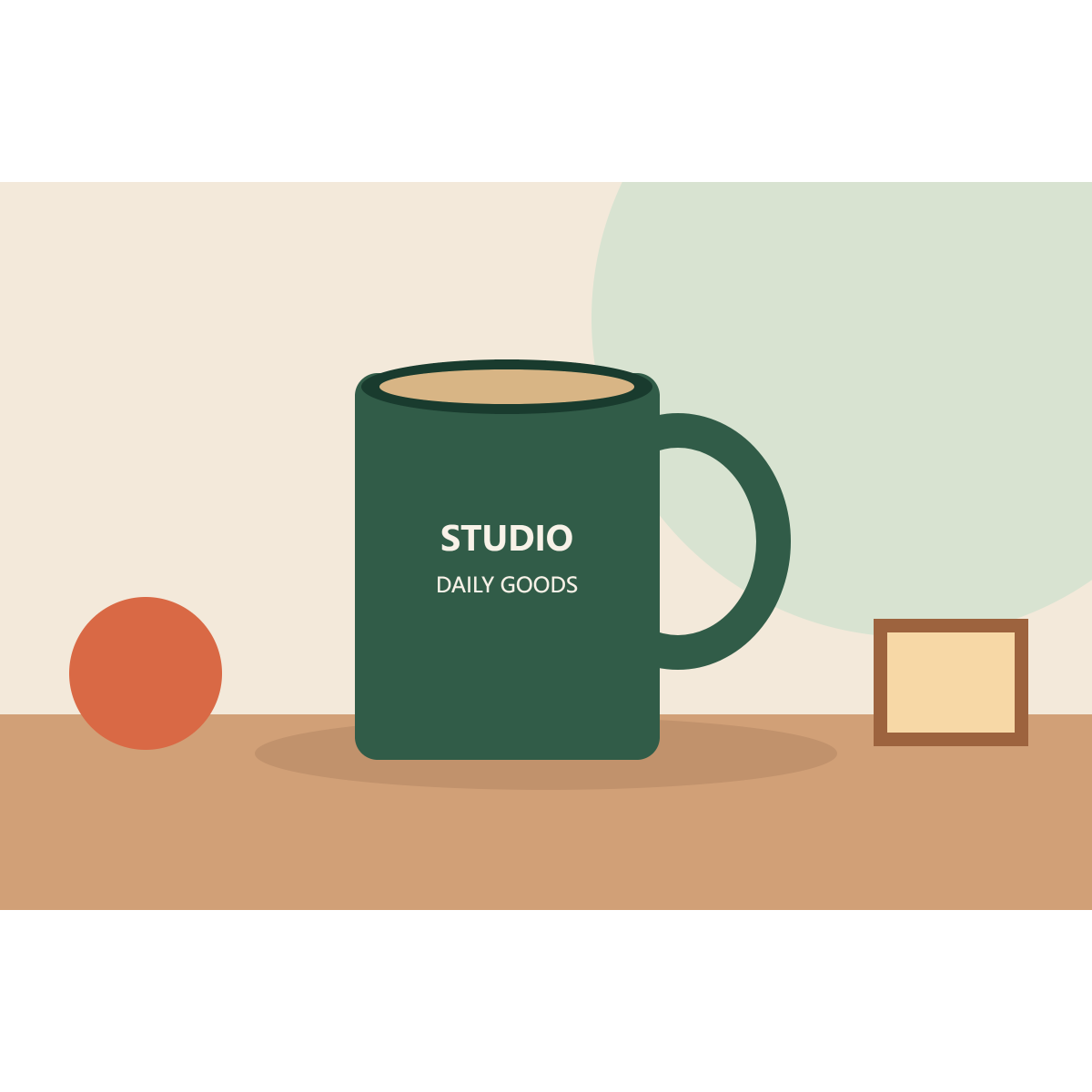
One original, three ways to resize
Original product illustrations exported with Picvaro’s existing image tool. These are editable example sizes, not marketplace requirements.
A product-photo recipe you can try
Make product photos square without cropping the original
A mixed batch of landscape and portrait photos can share the same outer dimensions by adding white canvas around each complete photo. This recipe uses the two downloadable original illustrations below, each 3.84 megapixels.
Download landscape original · 2400 × 1600 PNGDownload portrait original · 1600 × 2400 PNG
| Output and settings | Landscape result | Portrait result |
|---|---|---|
| White-padded JPEG1200 × 1200 · Exact canvas · quality 90 | 1200 × 1200 | 1200 × 1200 |
- Add the landscape and portrait originals. Leave Crop before resizing off to keep the complete photo.
- Choose Exact canvas / white padding, 1200 for both dimensions, and JPEG. The button below prepares these editable settings.
- Preview the first image, then process the batch. Open the ZIP and check every product, the white margins and image sharpness.
output-1/ → two 1200 × 1200 JPEG files
Padding adds canvas; it does not remove the original background or make every product look equally large within the frame. The photo keeps its background. Enlarging a small source may blur it. This 1200 px recipe is an example, not a marketplace requirement.
Try this square-photo setup freeFree: 3 images per batch, up to 2 outputs each and 1600 px per side. Processing stays in your browser. Full access can save the workflow for your next batch. Compare full access
How to do it in Picvaro
Choose a small batch
Open the free tool and add up to 3 JPEG, PNG or static WebP images. Your originals stay unchanged. Full access supports up to 500 images in a batch.
Choose how the image fits
Use Fit to keep the aspect ratio inside your width and height, without enlarging small originals. Use Fill for a center crop, or Exact canvas for white padding when you need matching outer dimensions.
Preview, then download the ZIP
Preview the first image to check framing. Process the batch and open the ZIP to inspect every result. Choose JPEG for photos, PNG for transparency, or WebP for supported web destinations.
Example: fit mixed product photos inside 1200 × 1200
A 2400 × 1600 landscape photo becomes 1200 × 800 in Fit mode. It does not become square. Choose Exact canvas for a 1200 × 1200 white canvas, or Fill if cropping away the edges is acceptable.
Common questions
Can I resize images to the same size without cropping?
Yes. Exact canvas adds white padding to reach your target width and height. Fit preserves the image shape but may leave one dimension smaller than the target. Fill reaches the target by cropping.
Does resizing guarantee a particular file size?
No. Dimensions, format, content and quality affect bytes. Adjust quality and inspect the exports if you have a file-size limit. Picvaro does not guarantee an exact KB target.
Can I create several sizes in one run?
Yes. Add a second output in the free tool, or use up to 5 outputs with full access. Each output has its own size and format.
Limits to know before you start
Free: 3 images, 2 outputs per image, up to 1600 px per side. Inputs: static JPEG, PNG or WebP, at most 24 megapixels and 100 MiB each. HEIC, animation and SVG are not supported. Export targets sRGB and does not preserve original ICC profiles or metadata.
Privacy and processing limits